 EmTech Media
macOS · Mac · Everyday fixes
Microphone permission on your Mac? Let the app use it
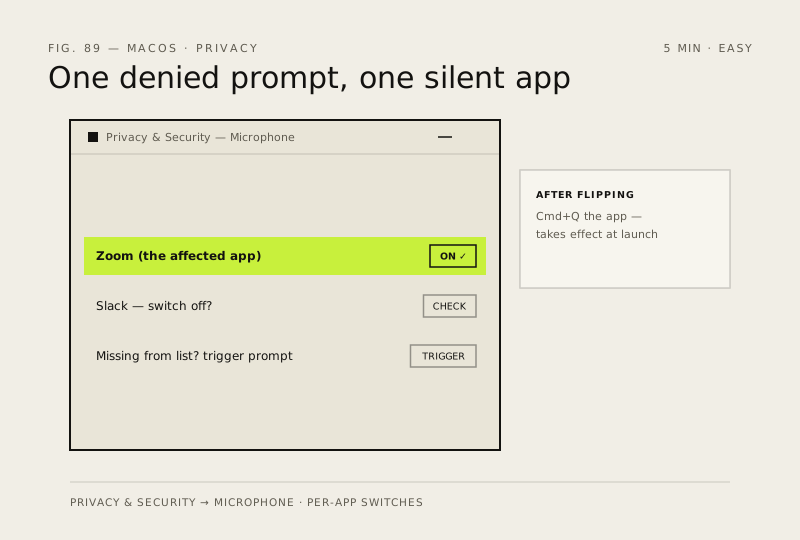
macOS blocks each app from the microphone until you allow it — one denied prompt and that app is silent forever, even though every other app hears you fine. The switch lives in Privacy & Security.
Before you start
Low risk. This change is reversible — you can return to the previous state without professional help or data loss.
Steps
- Open System Settings → Privacy & Security → Microphone
- Find the affected app in the list and make sure its switch is ON; if it's missing, use the mic inside that app once to trigger the permission prompt, then allow it
- If you just flipped a switch: quit the app fully with Cmd+Q (not just closing the window) and launch it again — permissions apply at launch
- Run the app's own microphone test or start a recording to confirm your voice comes through
How to verify the fix
After re-enabling access and relaunching the app, its microphone test (or a new recording) picks up your voice.
If this didn't fix it
Still blocked after toggling — quit the app fully with Cmd+Q, toggle the switch off and on again; if it persists the issue is app-specific or system-level and needs Apple Support rather than more resets.
Next stop: the related fixes below, or start a guided diagnosis.