 EmTech Media
macOS · Mac · Everyday fixes
Open apps blocked by Gatekeeper
'Cannot be opened because the developer cannot be verified' usually means a small indie app, not malware. Here's the safe way past it.
Before you start
Low risk. This change is reversible — you can return to the previous state without professional help or data loss.
Steps
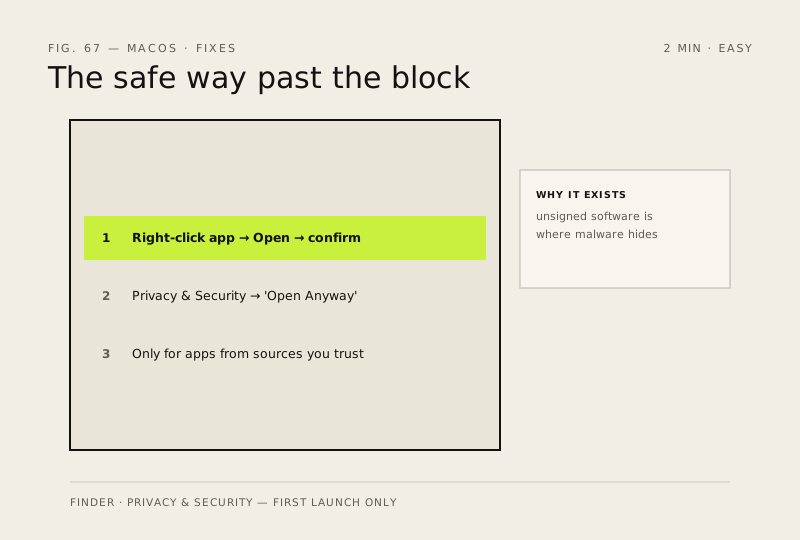
- Right-click (or Control-click) the app in Finder → Open → confirm 'Open' in the dialog — this only works for that first launch
- If that option isn't there: System Settings → Privacy & Security → scroll to the bottom → 'Open Anyway' next to the blocked-app message
- Only do this for apps you actually trust from a source you know — Gatekeeper exists because unsigned software is where malware hides
How to verify the fix
The app opens on first launch via right-click → Open (or Open Anyway), and runs normally afterwards.
If this didn't fix it
The app still won't open or behaves oddly — don't force it; an untrusted source is exactly where malware hides.
Next stop: the related fixes below, or start a guided diagnosis.