 EmTech Media
macOS · Mac · Everyday fixes
No sound on your Mac? Check the output device first
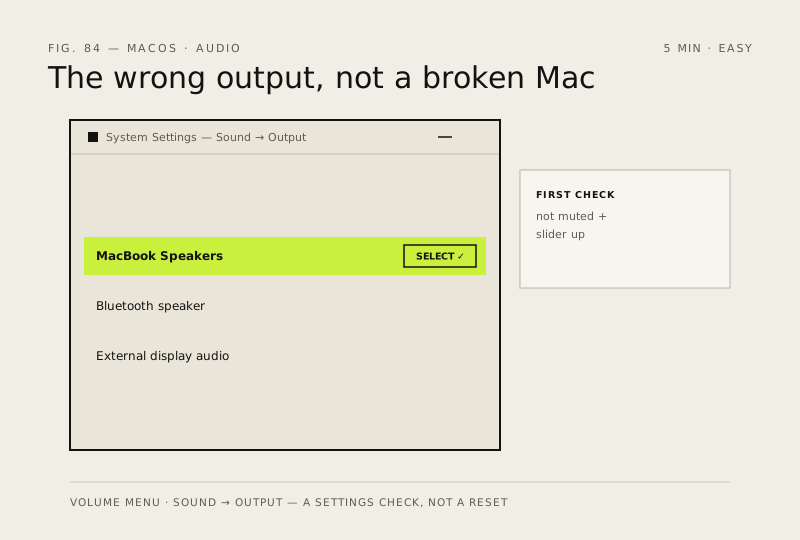
Most 'my Mac has no audio' tickets are the wrong output device selected after a Bluetooth pairing or an external display was plugged in. The fix is a settings check, not a reset.
Before you start
Low risk. This change is reversible — you can return to the previous state without professional help or data loss.
Steps
- Click the volume control in the menu bar (or press F12) and make sure it's not muted and the slider is up
- In that same menu, check 'Output' — if audio is routed to a Bluetooth speaker or an external display with speakers, select your Mac's built-in output instead
- Open System Settings → Sound → Output and pick 'MacBook Speakers' (or your expected device), then play a test clip
- If you use Bluetooth headphones: disconnect them in the Bluetooth menu and confirm sound returns to the speakers — that proves the routing was the problem
How to verify the fix
A video plays at a usable volume from the speaker or headphones you expect, and the output picker shows that device selected.
If this didn't fix it
Silence on every output including wired headphones — likely hardware; stop resetting settings and check for a loose jack or a failed audio board before deeper work.
Next stop: the related fixes below, or start a guided diagnosis.