 EmTech Media
macOS · Mac · Everyday fixes
Reset NVRAM when things misbehave
NVRAM stores display resolution, sound and boot preferences. A reset fixes a surprising number of weird glitches.
Before you start
Low risk. This change is reversible — you can return to the previous state without professional help or data loss.
Steps
- Shut down the Mac completely (not sleep)
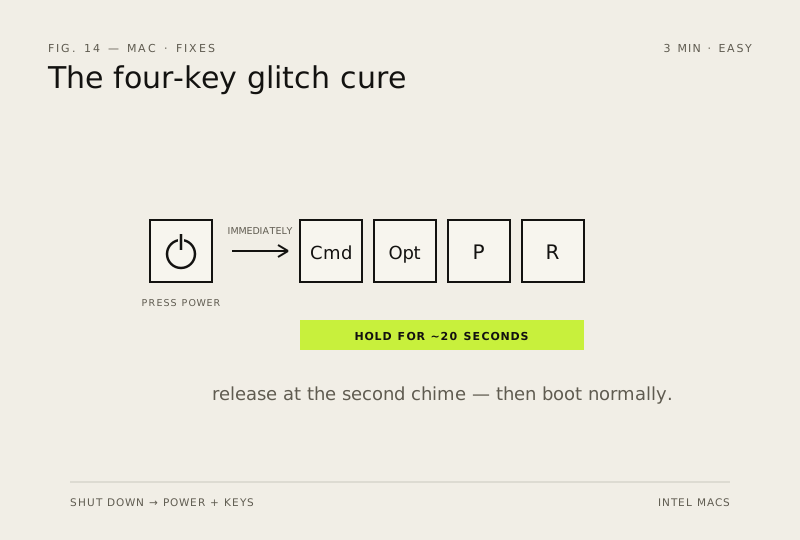
- Press power, immediately hold Option + Command + R for about 20 seconds
- Release when you hear the chime or see the second startup logo
- Boot normally — resolution and audio glitches are often gone
How to verify the fix
The Mac boots normally and the resolution/audio glitches that prompted the reset are gone.
If this didn't fix it
Glitches return after a normal boot — NVRAM wasn't the cause; check display settings and audio output next.
Next stop: the related fixes below, or start a guided diagnosis.