 EmTech Media
Win 10 / 11 · Windows
No sound? The four-minute fix
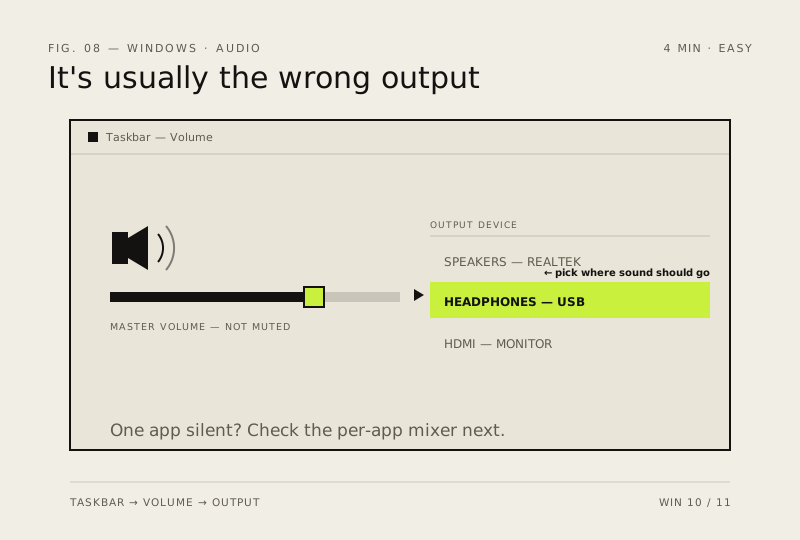
Most 'my PC has no audio' tickets are the wrong output device selected after a driver update or a plugged-in headset.
Before you start
Medium risk. This change is reversible — you can return to the previous state without professional help or data loss.
Steps
- Click the speaker icon in the taskbar → check the volume slider and that you're not muted; click the arrow to pick the right output (speakers vs headphones vs HDMI)
- Settings → System → Sound → open Volume mixer — sometimes one app is at zero while everything else looks fine
- Update or roll back the audio driver: Device Manager → Sound controllers → right-click your device → Update driver (or Roll back if it broke after an update)
- Restart the audio stack: Win + R → services.msc → find 'Windows Audio' → Restart; do the same for 'Windows Audio Endpoint Builder'
How to verify the fix
Audio plays from the correct output device, and the volume mixer shows no app stuck at zero.
If this didn't fix it
Still silent after restarting the audio services — roll back or update the audio driver; if that fails, test another headset/port to isolate hardware.
Next stop: the related fixes below, or start a guided diagnosis.