 EmTech Media
Win 10 / 11 · Windows
Fix a microphone no one can hear
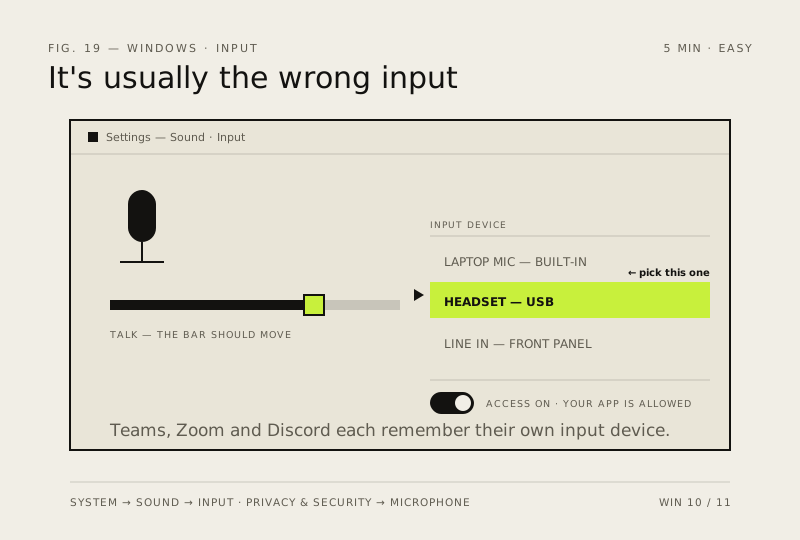
'You're on mute' is usually Windows listening to the wrong input, or a privacy setting silently blocking the app you're calling from.
Before you start
Low risk. This change is reversible — you can return to the previous state without professional help or data loss.
Steps
- Settings → System → Sound → Input: select the right device and talk. The volume bar should move — if it doesn't, nothing further down the chain will help
- Settings → Privacy & security → Microphone: confirm microphone access is on, then check your specific app is allowed in the list underneath
- Check the app's own audio settings too. Teams, Zoom and Discord each remember a separate input device and don't follow the Windows default
- Physical check: most headsets have an inline mute switch, and many laptops map mute to an F-key with its own indicator light
How to verify the fix
The input volume bar moves while you talk, and the other party can hear you in your calling app.
If this didn't fix it
The level bar doesn't move at all — check the inline mute switch/F-key first; if it still fails, test another mic to isolate hardware.
Next stop: the related fixes below, or start a guided diagnosis.