 EmTech Media
Win 10 / 11 · Windows
Stop your PC from sleep-glitching your network
Ethernet that drops right after wake-from-sleep, or Wi-Fi that needs a manual reconnect — it's the NIC trying to save power
Before you start
Low risk. This change is reversible — you can return to the previous state without professional help or data loss.
Steps
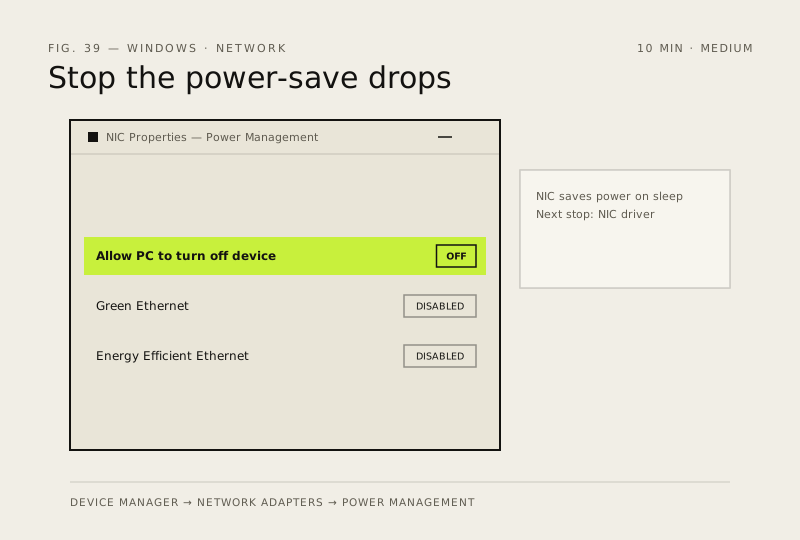
- Device Manager → Network adapters → your NIC → Properties → Power Management
- Uncheck 'Allow the computer to turn off this device to save power'
- Also under the same NIC → Advanced tab, set 'Green Ethernet' and 'Energy Efficient Ethernet' to Disabled
How to verify the fix
After wake-from-sleep, Ethernet/Wi-Fi stays connected without a manual reconnect.
If this didn't fix it
The connection still drops after sleep — the NIC driver itself may need updating from the laptop/motherboard maker's site.
Next stop: the related fixes below, or start a guided diagnosis.