 EmTech Media
Win 10 / 11 · Windows
Wi-Fi off or missing? The three switches that disable it
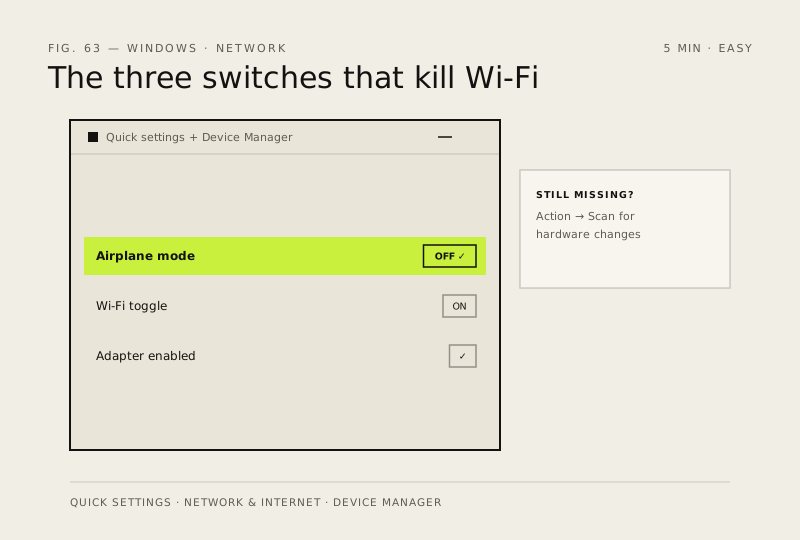
When the Wi-Fi option vanishes or won't turn on, it's almost always one of three switches — airplane mode, the network toggle, or a disabled adapter. All are quick to find and fully reversible.
Before you start
Low risk. This change is reversible — you can return to the previous state without professional help or data loss.
Steps
- Airplane mode first: click the network icon in the taskbar (or Win + A → Quick settings) and make sure Airplane mode is off
- Wi-Fi toggle: Settings → Network & internet → Wi-Fi — flip it off, wait ten seconds, on again
- Device Manager → Network adapters: if your wireless adapter shows a down-arrow or yellow warning, right-click → Enable device; if it has a warning icon, also try Update driver (or Roll back driver if it broke after an update)
- Still missing? Right-click the Start button → Device Manager → top menu → Action → Scan for hardware changes, then restart with Wi-Fi on — a stuck adapter state clears more often than you'd think
How to verify the fix
The Wi-Fi network list appears again, you can join your network, and a website loads normally.
If this didn't fix it
Wi-Fi still absent or won't connect after all three switches — likely a failing adapter or driver; update the NIC driver from the laptop/motherboard maker's site before considering hardware.
Next stop: the related fixes below, or start a guided diagnosis.