 EmTech Media
macOS · Mac · Everyday fixes
External monitor not detected on your Mac?
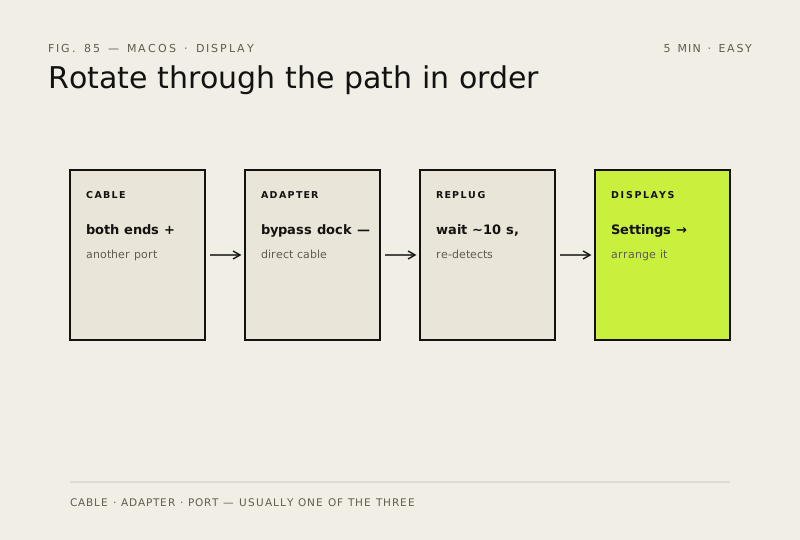
A second screen that macOS refuses to see is usually the cable, the adapter or a dead port — not the Mac. Rotate through them in order and it almost always shows up.
Before you start
Low risk. This change is reversible — you can return to the previous state without professional help or data loss.
Steps
- Check the cable at both ends, then try a different port on the Mac — some ports are data-only
- If you use an adapter or dock, bypass it first: connect the monitor directly with a known-good cable to rule out the adapter
- Replug the monitor and wait about 10 seconds — macOS usually re-detects on reconnect
- Open System Settings → Displays: a detected second screen appears here as an extra display you can arrange; drag a window across to confirm it's live
How to verify the fix
The second display appears in System Settings → Displays and accepts a dragged window after you replug it.
If this didn't fix it
A known-good cable into a direct port still shows nothing — the adapter or the panel itself may be failing; on Intel Macs an NVRAM reset is the next safe step before assuming hardware death.
Next stop: the related fixes below, or start a guided diagnosis.