 EmTech Media
macOS · Mac · Speed & performance
Free up disk space with Storage Management
macOS hides how full your drive really is. Storage Management shows the big offenders and can clean them automatically.
Before you start
Low risk. This change is reversible — you can return to the previous state without professional help or data loss.
Steps
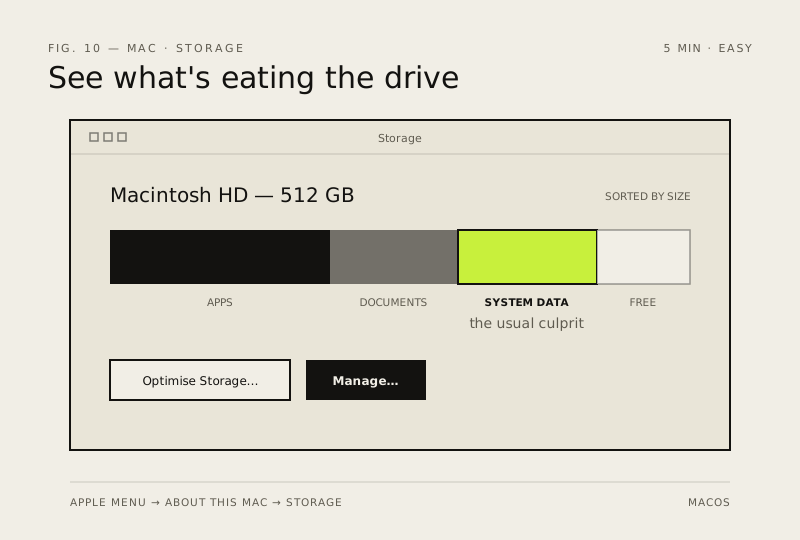
- Apple menu → About This Mac → Storage…
- Click 'Manage' to see what's eating space (Apps, Documents, System Data)
- Turn on 'Optimise Storage' so watched movies and TV get evicted automatically
- Remove apps you haven't opened in months — the list is usually brutal
How to verify the fix
About This Mac → Storage shows meaningful free space and Optimise Storage is switched on.
If this didn't fix it
Storage still nearly full after cleanup — the large items are in apps or iCloud you haven't reviewed yet.
Next stop: the related fixes below, or start a guided diagnosis.