 EmTech Media
macOS · Mac · Speed & performance
Keep 10% of your disk free
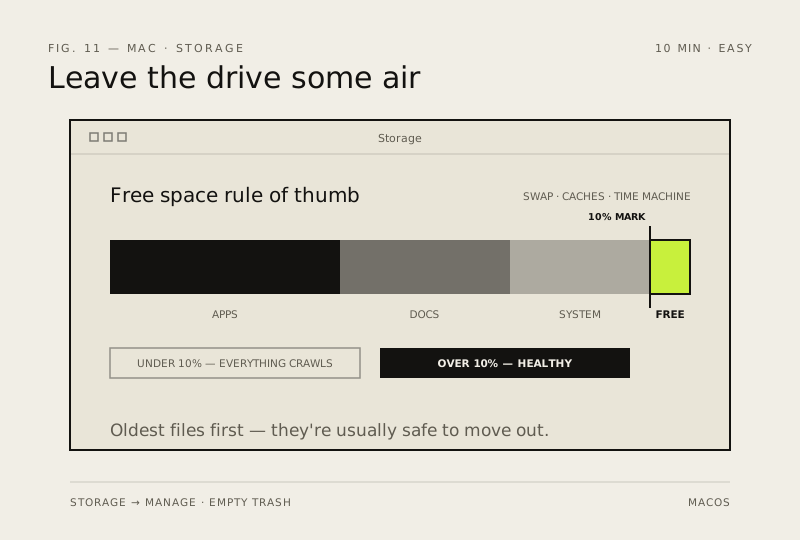
macOS needs headroom for swap and caches. Under about 10% free space, everything — including Time Machine — starts to crawl.
Before you start
Low risk. This change is reversible — you can return to the previous state without professional help or data loss.
Steps
- Apple menu → About This Mac → Storage… → Manage — sort categories by size and delete what you don't need (Apps, Documents, 'Other')
- Sort items by date last used — the oldest offenders are usually safe to move to an external drive
- Empty the Trash (Finder → Empty Trash) and clear out Downloads; set Finder → Settings → Advanced → 'Remove items from the Trash after 30 days'
- Photos library is huge? Photos → Settings → iCloud → Optimise Mac Storage keeps full-resolution copies in the cloud
How to verify the fix
About This Mac → Storage shows about 10% or more free space, and Time Machine backups run without warnings.
If this didn't fix it
Free space drops below 10% again within days — a single app or cache is regrowing; sort by size to find it.
Next stop: the related fixes below, or start a guided diagnosis.