 EmTech Media
Any · Security
Back up properly (3-2-1 rule)
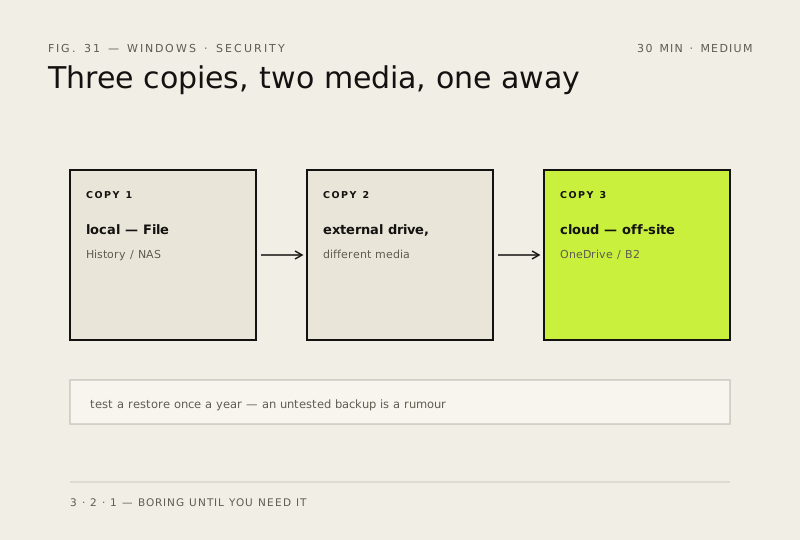
Three copies, two different media, one off-site. It's boring — until you need it. Set it up once.
Before you start
Low risk. This change is reversible — you can return to the previous state without professional help or data loss.
What usually goes wrong
- OneDrive and Google Drive are sync, not backup. Delete a file or let ransomware encrypt it and the change reaches the cloud copy in seconds. They only count as a copy if version history is on and you know how to roll it back.
- File History protects the folders it was told about and nothing else. Check that list — anything kept outside your user folder is excluded by default, which is exactly where games, projects and code usually live.
- A second drive in the same drawer is one copy, not two. The off-site copy is the one that survives a fire, a flood or a burglary, and it's the one people skip.
- An external drive left permanently connected is reachable by anything that gets onto the PC, ransomware included. Unplug it between backups.
Steps
- Enable Windows File History or use a NAS / external drive (copy #1 + #2)
- Add a cloud backup for your documents folder (OneDrive, Google Drive, or Backblaze B2)
- For important projects, keep a second copy on a USB stick you store elsewhere
- Test a restore once a year — a backup you can't restore isn't a backup
How to verify the fix
You can restore a test file from at least two different copies, including the off-site one.
If this didn't fix it
A restore attempt fails or you have fewer than three copies on two media — finish setting up the missing copy before trusting the backup.
Next stop: the related fixes below, or start a guided diagnosis.