 EmTech Media
Win 10 / 11 · Security
Protect against ransomware before it's too late
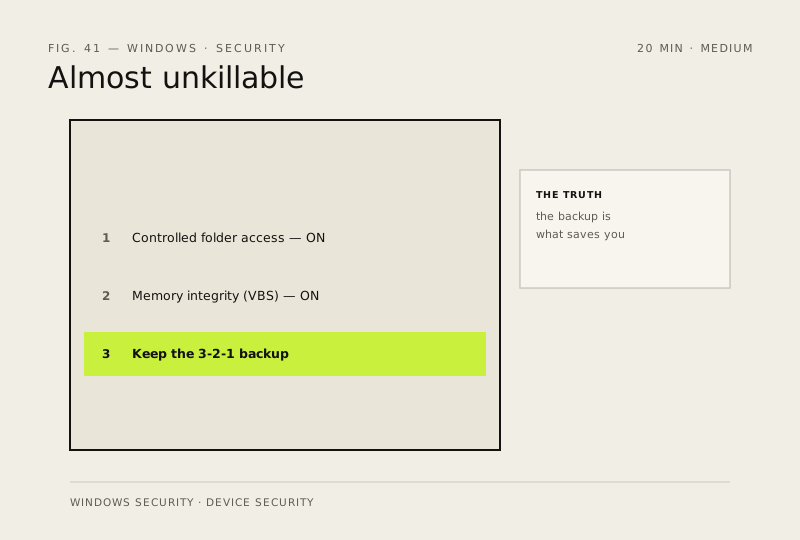
Ransomware that you can't restore from is the only data loss that really matters. VBS + Controlled Folder Access + a backup = you're almost unkillable.
Before you start
Medium risk. This change is reversible — you can return to the previous state without professional help or data loss.
What usually goes wrong
- Controlled folder access blocks legitimate software too. Games writing saves, Photoshop, backup tools and installers all get stopped, and you'll spend a week adding them under 'Allow an app through'. Switch it on when you have time for that, not the night before a deadline.
- Memory integrity refuses to enable if an old driver doesn't support it. Windows names the offending driver — update or remove that, rather than abandoning the setting.
- A backup only saves you if the ransomware can't reach it. A permanently plugged-in external drive, or a synced cloud folder, gets encrypted along with everything else.
- Test one restore now, while nothing is wrong. Discovering the backup doesn't restore is much cheaper today than on the morning you need it.
Steps
- Turn on Windows Defender's 'Controlled folder access': Settings → Privacy & Security → Windows Security → Virus & threat protection → Ransomware protection → on
- Enable 'Memory integrity' (VBS) under Device security — yes, it has a tiny game FPS cost on old hardware, it's worth it
- Keep the 3-2-1 backup from the earlier tip — that's the thing that actually saves you
How to verify the fix
Controlled folder access and Memory integrity both show On in Windows Security, and your 3-2-1 backup is current.
If this didn't fix it
An app or game breaks after enabling Memory integrity — note which one and weigh the trade-off, or disable that single setting.
Next stop: the related fixes below, or start a guided diagnosis.