 EmTech Media
Win 10 / 11 · Maintenance
Get back a file you deleted by mistake
Deleted isn't gone — it's unlinked, and the space is merely marked reusable. Your odds are excellent in the first hour and fall away quickly, so stop writing to that drive now.
Before you start
Low risk. This change is reversible — you can return to the previous state without professional help or data loss.
Steps
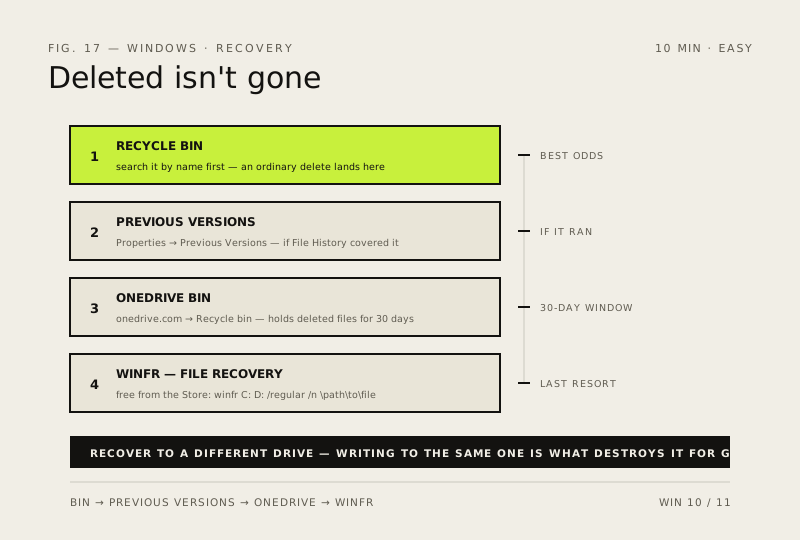
- Check the Recycle Bin and search it by name. Shift + Delete skips it, but an ordinary delete does not
- Right-click the folder it lived in → Properties → Previous Versions. If File History or a restore point covered that folder, the file is one click away
- Check OneDrive's online bin at onedrive.com → Recycle bin — it holds deleted files for 30 days even when they've vanished locally
- Still missing? Stop saving anything to that drive and run Windows File Recovery (free, from the Microsoft Store): winfr C: D: /regular /n \Users\YourName\Documents\report.docx
- Always recover to a different drive than the one you lost the file from — writing to it is what destroys the data for good
How to verify the fix
The recovered file opens and its contents are intact, saved to a different drive than the one it was lost from.
If this didn't fix it
The file isn't in Recycle Bin/Previous Versions/OneDrive bin — stop writing to that drive immediately; recovery odds fall quickly with time.
Next stop: the related fixes below, or start a guided diagnosis.