 EmTech Media
Any · Maintenance
Check for driver updates (in the right order)
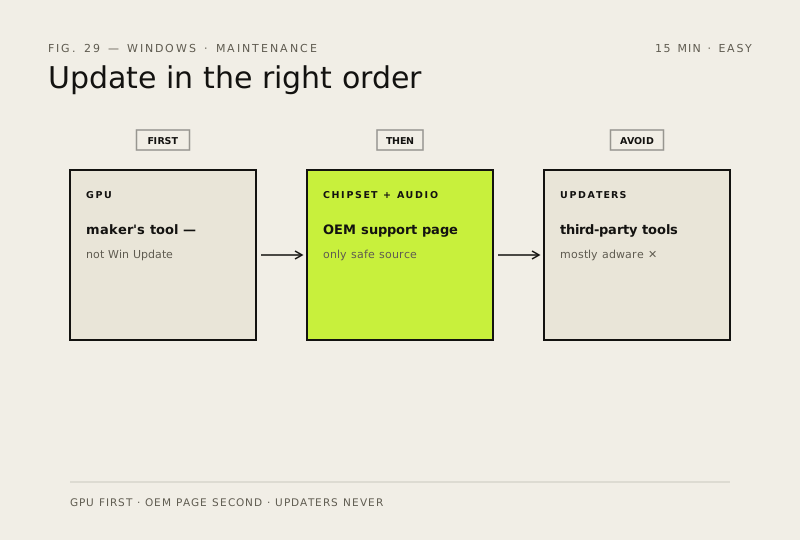
Stale or wrong drivers cause crashes, audio glitches, and odd lag. Update the GPU first — it's the one that matters most.
Before you start
Medium risk. This change is reversible — you can return to the previous state without professional help or data loss.
What usually goes wrong
- Newer isn't automatically better. If the machine is stable, leave the driver alone — GPU releases routinely fix one thing and break another.
- NVIDIA offers Game Ready and Studio drivers. Studio is the steadier choice unless you're chasing performance on a game that launched this week.
- After a big Windows feature update, check your GPU driver version again. Windows sometimes reinstalls its own older copy over yours, and the glitch you fixed comes back.
- Set a restore point before chipset drivers. They touch storage and power management, which is the category most likely to leave you unable to boot.
Steps
- GPU: use the maker's tool (NVIDIA GeForce Experience / AMD Adrenalin / Intel DSA) — not Windows Update for this
- Chipset + audio + network: the laptop/motherboard maker's support page is the only safe source
- Avoid third-party 'driver updaters' — they're mostly adware
How to verify the fix
Crashes, audio glitches and odd lag stop after the GPU + chipset updates, and Device Manager shows no yellow warnings.
If this didn't fix it
Problems continue or new glitches appear — roll back the most recent driver update on the affected device.
Next stop: the related fixes below, or start a guided diagnosis.