 EmTech Media
Win 10 / 11 · Windows
USB device not recognised? The Device Manager pass
A keyboard, mouse or drive that Windows ignores is usually a port, cable, or driver state — not the device itself. Work through the path before you buy anything.
Before you start
Medium risk. This change is reversible — you can return to the previous state without professional help or data loss.
Steps
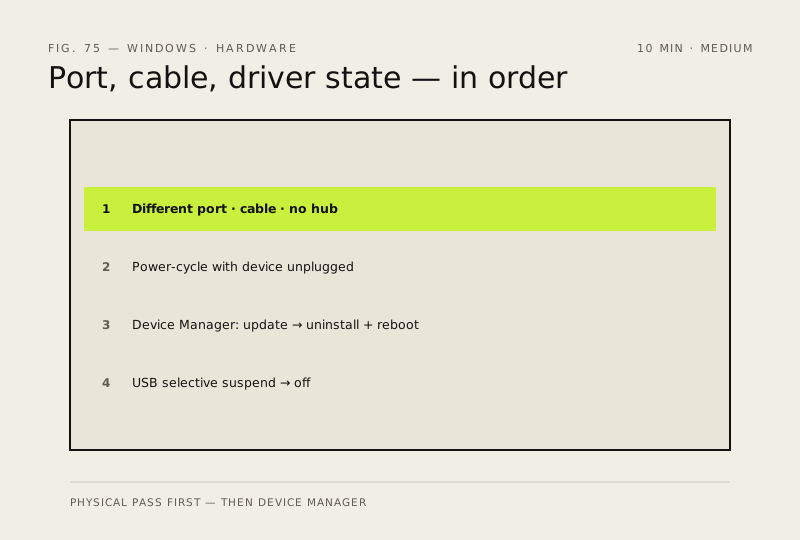
- The physical pass first: try a different USB port (on a desktop, one on the back of the case), a different cable if it has one, and remove any hub — direct connection only
- Power-cycle with the device unplugged: shut down, unplug the PC fully for 30 seconds, boot up, then plug the device in last
- Device Manager → look under Universal Serial Bus controllers (and Keyboards / Mice) for a yellow warning or 'Unknown device' — right-click it → Update driver first; if that fails, Uninstall device and reboot so Windows reinstalls a clean copy
- If the device drops after sleep: Control Panel → Power Options → Change plan settings → Change advanced power settings → USB settings → turn off USB selective suspend
How to verify the fix
The device appears in Device Manager without warnings and does its job — keyboard types, mouse moves, or the drive shows up in File Explorer with files readable.
If this didn't fix it
Still missing or erroring after port, cable and driver checks — test it on another PC; if it works there the fault is this machine's USB controller, not the device.
Next stop: the related fixes below, or start a guided diagnosis.