 EmTech Media
Win 10 / 11 · Windows
Fix a webcam that won't turn on
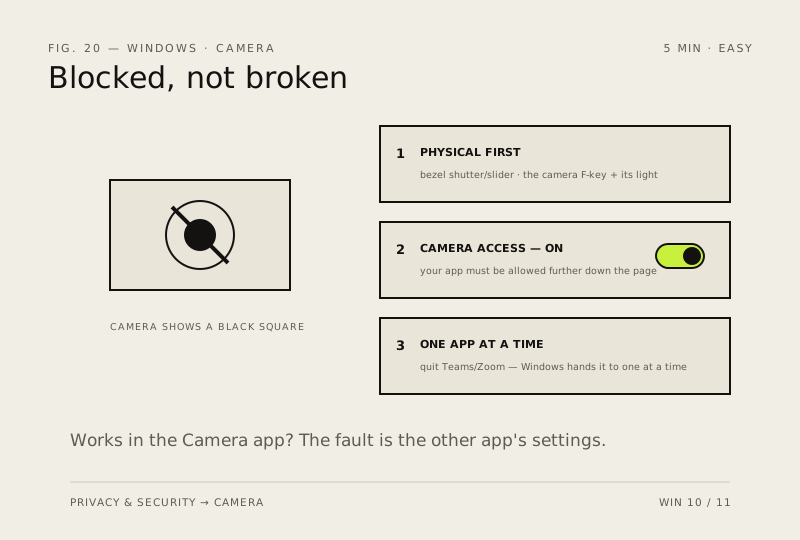
A camera showing a black square is nearly always blocked rather than broken — by a privacy setting, a physical shutter, or another app that grabbed it first.
Before you start
Low risk. This change is reversible — you can return to the previous state without professional help or data loss.
Steps
- Check the physical shutter or slider on the bezel, and the F-key that disables the camera on many laptops
- Settings → Privacy & security → Camera: turn camera access on, then confirm your app is permitted further down the page
- Quit every other app that might be holding the camera — Windows hands it to one at a time, and a backgrounded Teams or Zoom window is the usual culprit
- Open the built-in Camera app. If the picture works there, the fault is in the other app's settings and not the hardware
How to verify the fix
The built-in Camera app shows a live picture, and your calling app can access the camera afterwards.
If this didn't fix it
Camera works in the Camera app but not your app — the fault is that app's settings; if it fails everywhere, check the privacy toggle and physical shutter.
Next stop: the related fixes below, or start a guided diagnosis.