 EmTech Media
Win 10 / 11 · Windows
Check whether your PC can run Windows 11
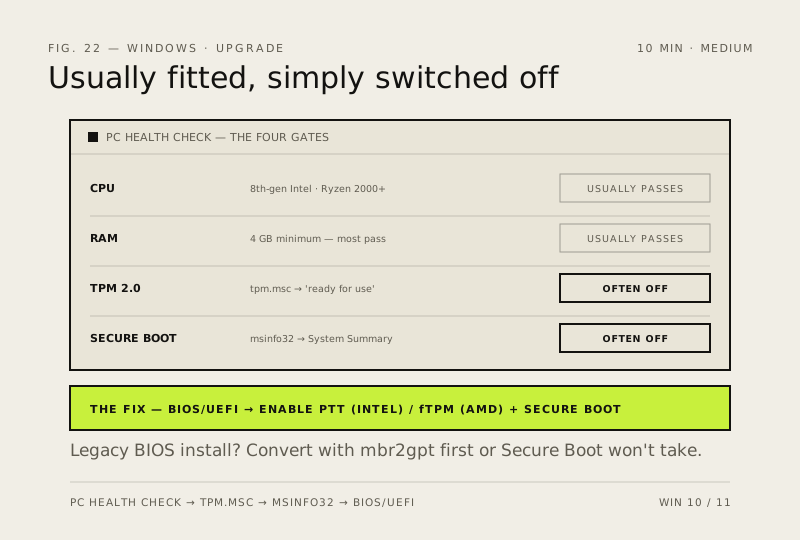
Most machines from 2018 onward qualify. The two things that usually block the upgrade — TPM 2.0 and Secure Boot — are often already fitted and simply switched off in the BIOS.
Before you start
Medium risk. This change is reversible — you can return to the previous state without professional help or data loss.
Steps
- Run Microsoft's PC Health Check app — unlike the installer, it names the exact blocker instead of just refusing
- Check the TPM: Win + R → tpm.msc. You want 'The TPM is ready for use' and Specification Version 2.0
- Check Secure Boot: Win + R → msinfo32 → System Summary → Secure Boot State. 'Off' is a firmware setting, not a hardware limit
- If either is off, reboot into BIOS/UEFI and look for TPM, PTT (Intel) or fTPM (AMD), plus Secure Boot — turning them on costs nothing
- One caveat: if Windows was installed in legacy BIOS mode, convert the disk first with mbr2gpt or enabling Secure Boot will stop it booting
How to verify the fix
PC Health Check names no blockers (or TPM 2.0 + Secure Boot are confirmed ready), and the PC still boots normally after any BIOS change.
If this didn't fix it
The PC fails to boot after enabling Secure Boot — it was installed in legacy mode; revert in UEFI and convert with mbr2gpt first if you proceed.
Next stop: the related fixes below, or start a guided diagnosis.