 EmTech Media
Win 10 / 11 · Speed
CPU pegged at 100%? Find the culprit in Task Manager
A processor pinned near 100% is almost always one process working too hard — or something launching at boot. Task Manager names the culprit in seconds, and closing a misbehaving app can't damage Windows.
Before you start
Low risk. This change is reversible — you can return to the previous state without professional help or data loss.
Steps
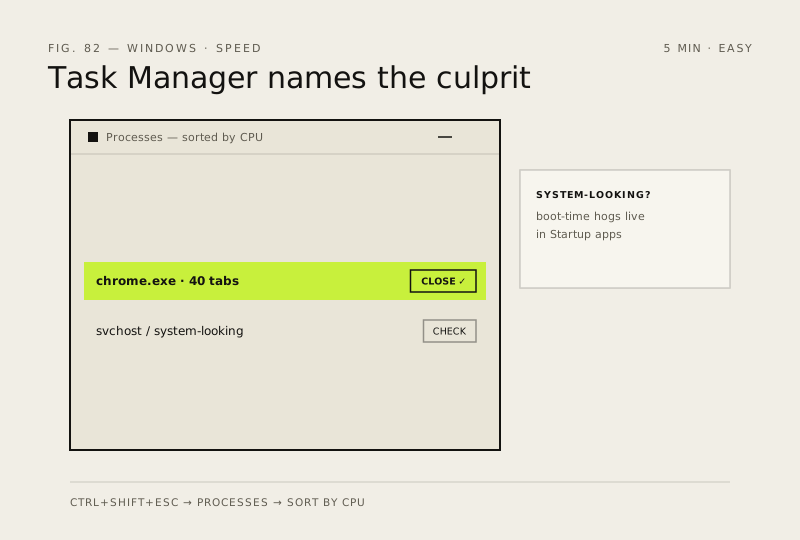
- Press Ctrl+Shift+Esc to open Task Manager (or right-click the taskbar → Task Manager)
- On the Processes tab, click the CPU column header to sort by usage — look at which entry sits on top
- If it's an app you recognise (browser with 40 tabs, a game, a video editor): close or restart it and watch whether CPU drops within a minute
- If the top entry is svchost.exe or something system-looking: note its name, then open Task Manager → Startup apps and disable anything you don't need at boot — that's where silent CPU hogs usually live
How to verify the fix
After closing or restarting the offending app, CPU usage settles below roughly 20% within a minute and the PC feels responsive again.
If this didn't fix it
If CPU stays pegged with no single app responsible (or it's always 'System'/'svchost.exe'), stop here — that points at background processes, a driver or malware. Move to the memory-hog and startup-bloat checks instead of killing random system processes.
Next stop: the related fixes below, or start a guided diagnosis.