 EmTech Media
Win 10 / 11 · Speed
Disable startup bloat
Every app that launches at boot slows your PC down. Most don't need to.
Before you start
Low risk. This change is reversible — you can return to the previous state without professional help or data loss.
Steps
- Press Ctrl + Shift + Esc to open Task Manager
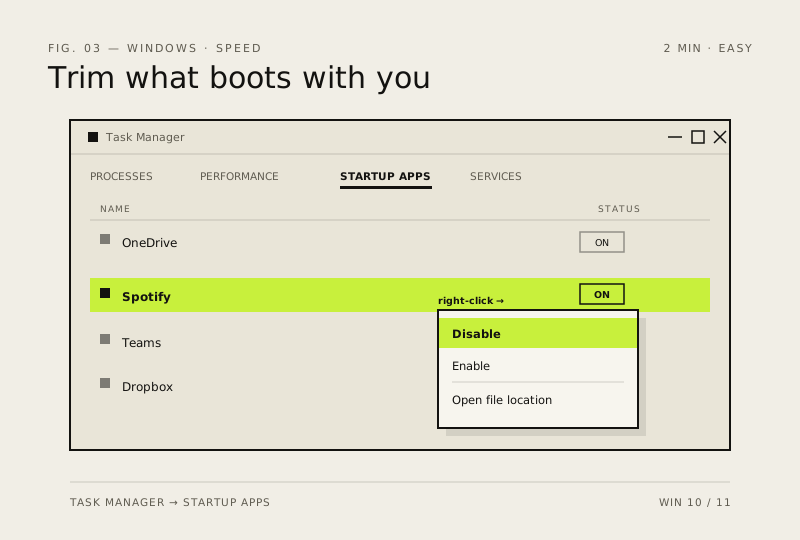
- Go to the Startup apps tab (Startup in Win 10)
- Right-click anything non-essential and choose Disable
- Restart to see the faster boot
How to verify the fix
Restart the PC and confirm boot is faster and the disabled apps no longer launch at startup.
If this didn't fix it
Boot speed hasn't improved, or an app you need stopped starting — re-enable it in Task Manager → Startup apps.
Next stop: the related fixes below, or start a guided diagnosis.