 EmTech Media
Any · Maintenance
Fix a PC that overheats and fans like a jet engine
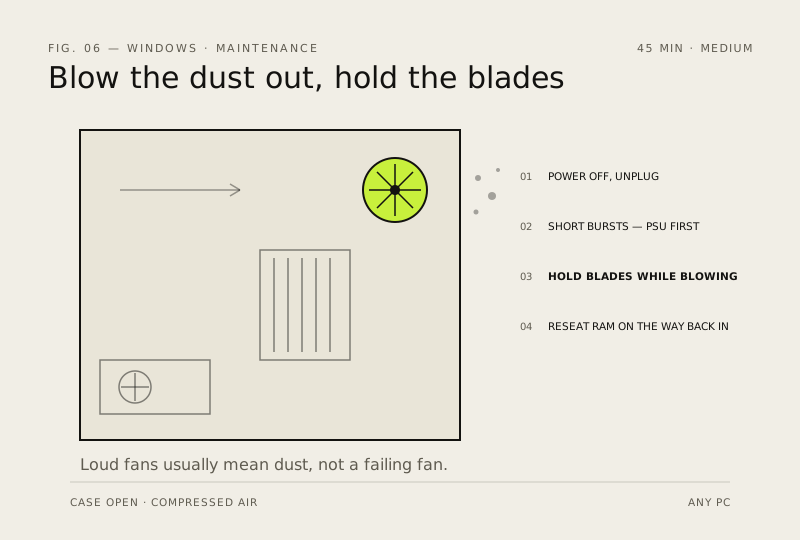
Loud fans usually mean dust, not a failing fan. A clean-out often fixes half of all 'my PC is slow' tickets.
Before you start
Low risk. This change is reversible — you can return to the previous state without professional help or data loss.
What usually goes wrong
- Never use a vacuum cleaner. The nozzle generates static as air rushes past it, and static is what kills components — compressed air or an anti-static blower only.
- Keep the can upright and work in short bursts. Tilt it and you spray freezing liquid propellant straight onto the board.
- A laptop is not this job. The heatsink sits behind the fan and reaching it means most of a disassembly — if blowing through the vents doesn't help, that's a workshop afternoon, not a Sunday one.
- Still hot after a thorough clean on a machine over about five years old? The thermal paste has dried out. That's the actual fix, and no amount of further dusting substitutes for it.
- Don't open the power supply. Its capacitors hold a dangerous charge long after the plug comes out — clean it through the grille from outside and leave the case sealed.
Steps
- Power off and unplug. Open the case side panel
- Blow dust out with compressed air in short bursts (PSU first, then fans, then heatsink fins)
- Hold fan blades still while blowing — spinning them backfired can damage the motor
- Reseat RAM and check for loose cables on the way back in
- Reassemble, boot, and check temps in HWiNFO64
How to verify the fix
Fans are quieter under normal use and HWiNFO64 shows lower CPU/GPU temperatures than before cleaning.
If this didn't fix it
Temps and fan noise are unchanged after a clean-out — the cause is likely thermal paste, a failing fan, or blocked airflow elsewhere.
Next stop: the related fixes below, or start a guided diagnosis.