 EmTech Media
Any · Hardware
Know your BIOS settings (the 5 that matter)
Most of the speed potential in a PC is already there — it's locked in the BIOS/UEFI. Five settings unlock most of it.
Before you start
High risk. This change is reversible — you can return to the previous state without professional help or data loss.
What usually goes wrong
- Photograph each screen before you change anything. UEFI has no undo, and 'load optimised defaults' also throws away settings you wanted to keep.
- One setting at a time, reboot in between. Change five at once and a machine that won't start tells you nothing about which one did it.
- XMP/EXPO is an overclock, just a pre-packaged one. Not every kit hits its rated speed on every board — if the PC gets flaky after enabling it, that's the first thing to turn back off.
- If it won't post at all, the fix is a CMOS clear, not the UEFI menu you can no longer reach: power off at the wall, then move the CLR_CMOS jumper or pull the board battery for a minute.
- The names vary by manufacturer. Resizable BAR may appear as 'Above 4G Decoding' plus 'Re-Size BAR Support', and virtualisation is VT-x on Intel but SVM on AMD.
Steps
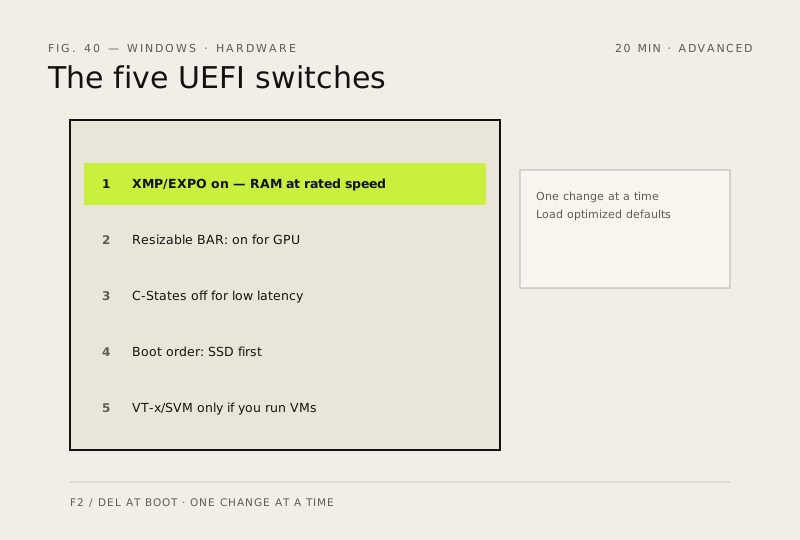
- Enter UEFI (usually F2 / DEL at boot). XMP/EXPO: enable it or your RAM runs at 2133 MHz instead of its rated speed
- Resizable BAR (Above 4G): on for GPU
- C-States: off if you do low-latency work
- Boot order: put your SSD first
- Enable virtualisation (VT-x / SVM) only if you use VMs or Android emulators — off is safer otherwise
How to verify the fix
The PC boots normally, RAM runs at its rated speed (Task Manager → Memory), and the UEFI settings persist across reboots.
If this didn't fix it
The PC fails to post or is unstable after a change — enter UEFI again and reset that setting (or load optimized defaults).
Next stop: the related fixes below, or start a guided diagnosis.