 EmTech Media
Win 10 / 11 · Windows
Lower Windows transparency and animation effects
Transparency and animations eat GPU and CPU on modest hardware. Turning them off makes everything feel snappier.
Before you start
Low risk. This change is reversible — you can return to the previous state without professional help or data loss.
Steps
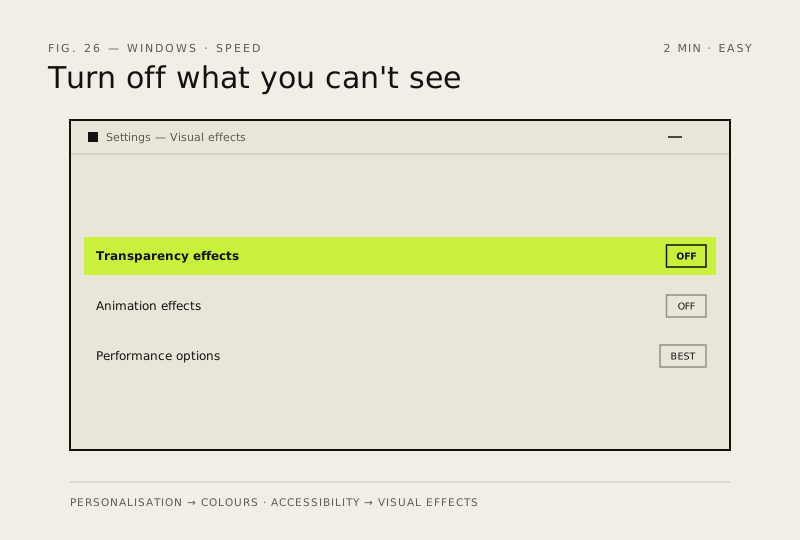
- Settings → Personalisation → Colours → turn off 'Transparency effects'
- Settings → Accessibility → Visual effects → turn off animation effects
- Optional: win+r → sysdm.cpl → Advanced → Performance → 'Adjust for best performance'
How to verify the fix
Transparency and animations are visibly off in Settings, and the UI feels snappier on modest hardware.
If this didn't fix it
No perceptible speed change — turn the effects back on if you prefer the look (Settings → Personalisation).
Next stop: the related fixes below, or start a guided diagnosis.