 EmTech Media
Win 10 / 11 · Windows
Make big file transfers actually fast
Drag-and-drop copies files one at a time and scans every byte twice. A few settings make the same transfer feel instant.
Before you start
Medium risk. This change is reversible — you can return to the previous state without professional help or data loss.
Steps
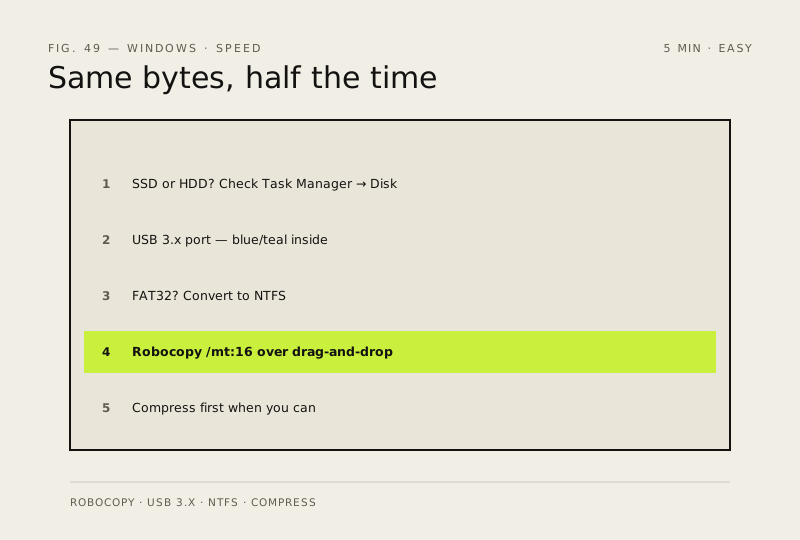
- Check what you're copying to/from: Task Manager → Performance → Disk — it says SSD or HDD; an NVMe drive does in 15 seconds what takes an HDD three minutes
- Use a USB 3.x port (blue/teal plastic inside) for external drives — roughly ten times the speed of USB 2.0
- External drive still on FAT32? Right-click it in File Explorer → Properties to check; convert with `convert X: /fs:ntfs` from an admin prompt, or format fresh if it's empty
- For big moves use Robocopy instead of drag-and-drop: robocopy "C:\Source" "D:\Dest" /e /z /mt:16 — parallel threads, resumable, often half the time
- Compress first when you can (documents and code shrink 50–80%), and close background apps while the transfer runs
How to verify the fix
The same transfer that took minutes now completes in a fraction of the time, and Robocopy reports no copy errors.
If this didn't fix it
Speeds are still slow on USB 3.x with an SSD at both ends — the drive or cable may be faulty; test another port/cable.
Next stop: the related fixes below, or start a guided diagnosis.