 EmTech Media
Win 10 / 11 · Maintenance
Run drive optimization the safe way
Defragmenting an SSD is actively harmful; skipping it on an HDD leaves speed on the table. Windows has one tool that does both correctly.
Before you start
Low risk. This change is reversible — you can return to the previous state without professional help or data loss.
Steps
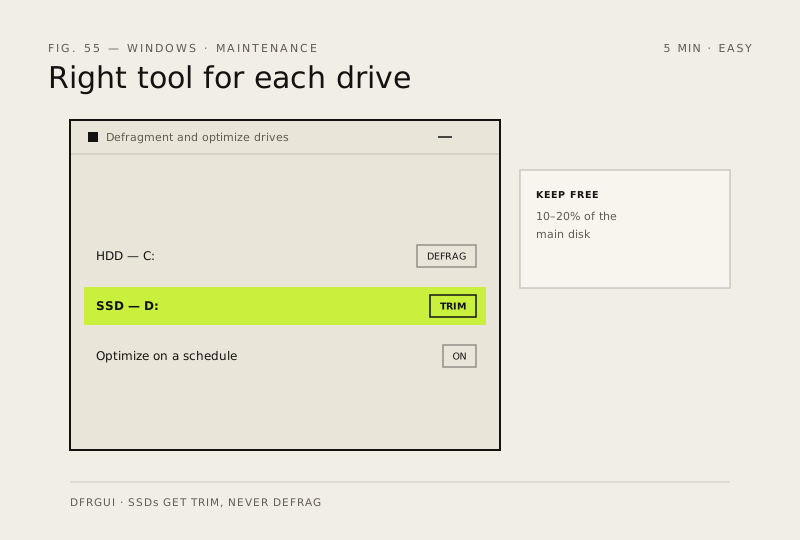
- Search 'Defragment and optimize drives' (or win+r → dfrgui) — it lists every drive with its type
- HDDs: click Optimize to defrag; SSDs: the same button runs TRIM instead, which is what they actually need
- Click 'Change settings' → enable 'Optimize on a schedule' (weekly for HDDs, monthly for SSDs) and let Windows do it overnight
- Keep 10–20% of your main drive free — a full disk slows everything down, including the pagefile
How to verify the fix
The optimization schedule runs overnight without errors, and each drive gets its correct operation (defrag for HDDs, TRIM for SSDs).
If this didn't fix it
Optimization fails or the drive is still slow — check free space (keep 10–20% free) and run a disk health check.
Next stop: the related fixes below, or start a guided diagnosis.