 EmTech Media
Any · Hardware
Move your OS or games to an SSD
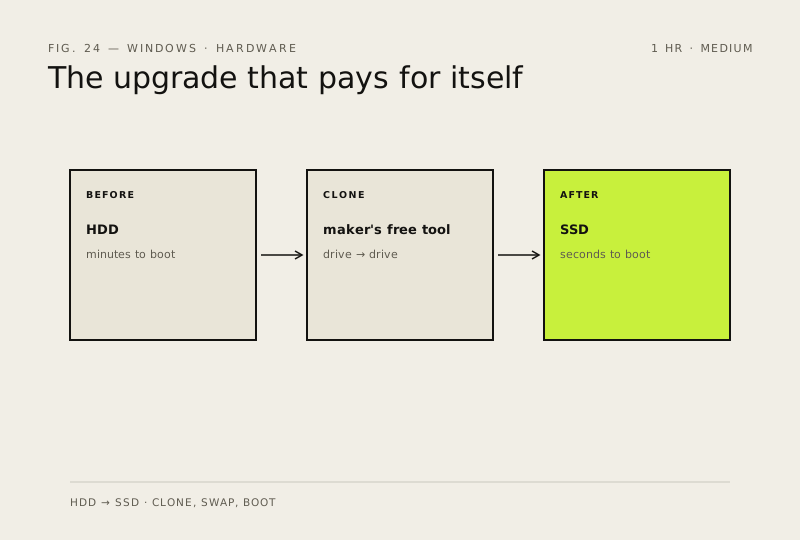
HDD → SSD is the single biggest speed upgrade you can make. Boot times go from minutes to seconds.
Before you start
High risk. This change is not fully reversible — read every step before you begin and make sure your important work is saved.
What usually goes wrong
- Clone the whole drive, not just the C: partition. The small hidden EFI and recovery partitions are what actually make it bootable — miss them and you get a perfect copy of your files that won't start.
- If the SSD is smaller than the old drive, shrink the old partition to fit before cloning. This is the single most common reason a clone refuses to start.
- Set SATA mode to AHCI, or enable NVMe, in the BIOS before the first boot. Skip it and Windows greets you with INACCESSIBLE_BOOT_DEVICE on a drive that is in fact fine.
- Unplug the old drive for the first boot from the SSD. With both connected, the boot manager can load from the new drive but still point at the old one, and you'll think the clone failed.
- Keep the old drive untouched for a month before you wipe it. It is your only way back, and the things that turn out to be missing — a licence, a save folder, a mail archive — surface in week three, not on day one.
Steps
- Buy a SATA or NVMe SSD (500 GB+ if going for OS + games)
- Use the SSD maker's cloning software (Samsung, Crucial, WD all have free tools) to clone your drive
- Swap the drives (or set the SSD as the first boot device in BIOS)
- Verify it boots — then leave the old drive alone for a month before you reuse it. Something always turns out to be missing in week three
How to verify the fix
Windows boots from the SSD in seconds and games load faster than on the old drive.
If this didn't fix it
The PC won't boot from the new drive, or speed didn't improve — restore the old drive as the first boot device before doing anything else.
Next stop: the related fixes below, or start a guided diagnosis.