 EmTech Media
Win 10 / 11 · Maintenance
Run a disk health check before it's too late
Drives fail suddenly. A 10-minute monthly check tells you when to back up and replace before the data is gone.
Before you start
Medium risk. This change is reversible — you can return to the previous state without professional help or data loss.
What usually goes wrong
- Don't run chkdsk /r on a drive already reporting bad sectors. The full surface scan hammers a failing disk for hours and is quite capable of finishing it off. Copy the data somewhere safe first, then test.
- S.M.A.R.T. reporting 'OK' is not a clean bill of health — it only means no threshold the manufacturer chose has been crossed yet. A reallocated sector count that is climbing at all is the warning, whatever the overall verdict says.
- chkdsk tells you very little about an SSD. Wear levelling plus the maker's own tool — Samsung Magician, Crucial Storage Executive — are the checks that mean something there.
- Clicking, ticking, or a drive that disappears and comes back: stop testing and copy the data off now. Every extra powered-on hour is spending down what you can still recover.
Steps
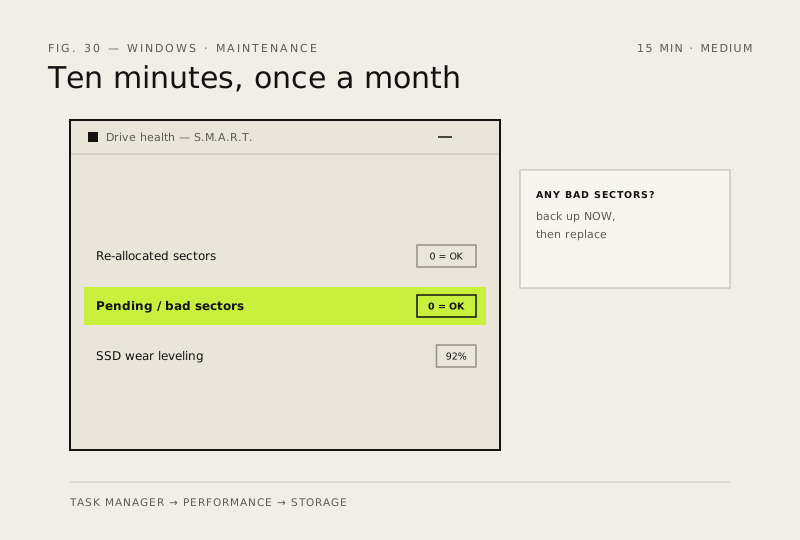
- Task Manager → Performance → Storage → check 'Health' (or use CrystalDiskInfo for full S.M.A.R.T. data)
- Any re-allocated sectors, pending sectors, or bad sectors = back everything up NOW
- SSDs: check 'Wear Leveling Count' — under 90% is fine, below 50% plan a replacement
- Run 'chkdsk C:' from an admin command prompt for a full scan (takes a while, do it overnight)
How to verify the fix
S.M.A.R.T. health reads Good with no re-allocated, pending or bad sectors, and chkdsk completes without unfixable errors.
If this didn't fix it
Any bad/re-allocated sectors or failing S.M.A.R.T. attributes — back everything up immediately and plan a drive replacement.
Next stop: the related fixes below, or start a guided diagnosis.