 EmTech Media
Win 10 / 11 · Windows
Organise your work with virtual desktops
One giant taskbar full of thirty apps is where focus goes to die. Windows has had real multi-desktop support forever — most people never find it.
Before you start
Low risk. This change is reversible — you can return to the previous state without professional help or data loss.
Steps
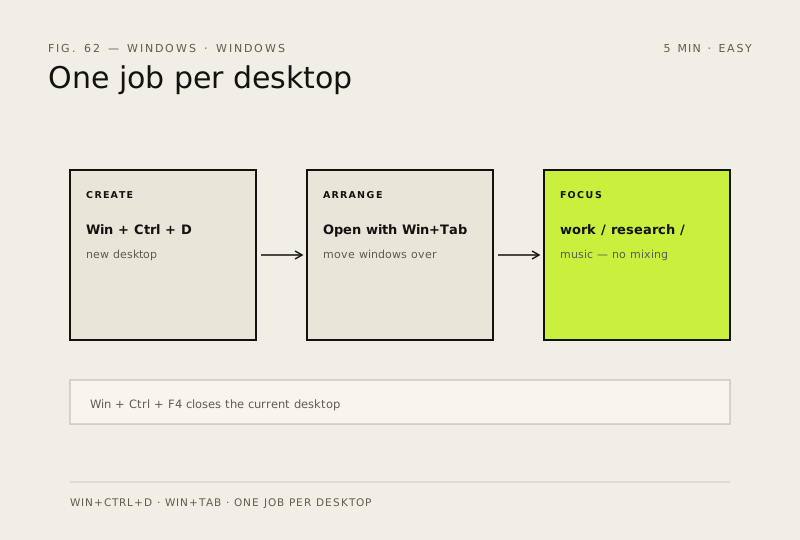
- Win + Ctrl + D creates a new virtual desktop; Win + Ctrl + Left/Right switches between them
- Task View (Win + Tab) shows all of them at once — drag windows between desktops from there
- Give each one a job: work, research, music/games — your brain stops context-switching when the taskbar does
- Win + Ctrl + F4 closes the current desktop; right-click its thumbnail in Task View to rename it
How to verify the fix
Win + Ctrl + D creates a new desktop and Win + Ctrl + Left/Right switches between them without closing apps.
If this didn't fix it
Shortcuts do nothing — check that a game overlay or remote session isn't capturing the keys, and try Task View (Win + Tab) instead.
Next stop: the related fixes below, or start a guided diagnosis.