 EmTech Media
Win 10 / 11 · Gaming
Raise your effective FPS with Windows Game Mode
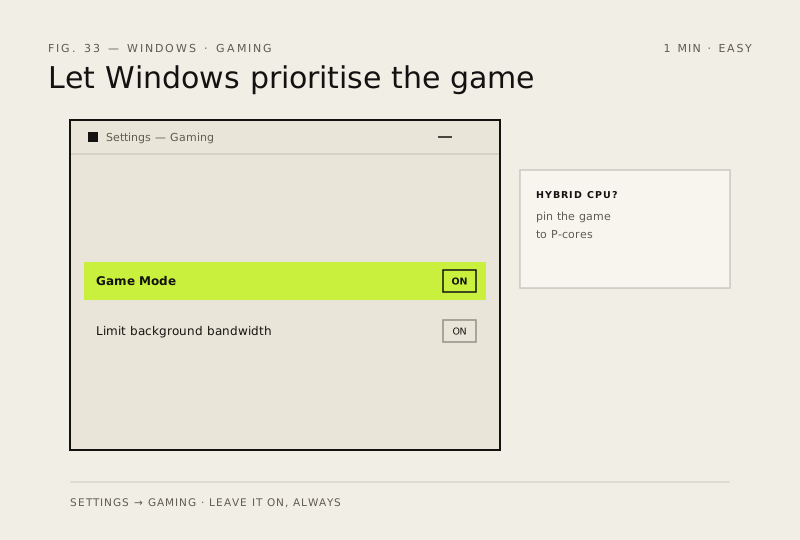
Game Mode tells Windows to prioritise the game process and quiet notifications. Leave it on, always.
Before you start
Low risk. This change is reversible — you can return to the previous state without professional help or data loss.
Steps
- Settings → Gaming → Game Mode → keep it ON
- Same page → Background processes → 'Limit background bandwidth' (on slow connections)
- In Task Manager, pin your game to a specific CPU core group if you have a hybrid CPU (P-cores vs E-cores) via the GPU's affinity settings
How to verify the fix
In-game FPS is stable and notifications no longer interrupt gameplay while Game Mode stays on.
If this didn't fix it
No FPS improvement — check the GPU driver and in-game settings before blaming Game Mode.
Next stop: the related fixes below, or start a guided diagnosis.