 EmTech Media
Win 10 / 11 · Gaming
Stop games stuttering — the 5-point checklist
Most 'random lag spikes' trace back to one of five mundane causes. Knock them all out.
Before you start
Medium risk. This change is reversible — you can return to the previous state without professional help or data loss.
What usually goes wrong
- DDU has to run in Safe Mode with the network disconnected. Run it on a normal desktop and Windows reinstalls a driver halfway through the clean, which is how people end up worse off than when they started.
- Stutter alongside a healthy average frame rate usually isn't the GPU. Watch the frametime graph rather than the FPS counter — a game averaging 120 with regular spikes feels far worse than a steady 60.
- Shader compilation stutter during the first hour of a modern game is normal and settles by itself. Don't rebuild the machine over it.
- Uncapping the frame rate without a limiter pins the GPU at 100% and can make latency worse, not better. Cap a few frames below your refresh rate.
Steps
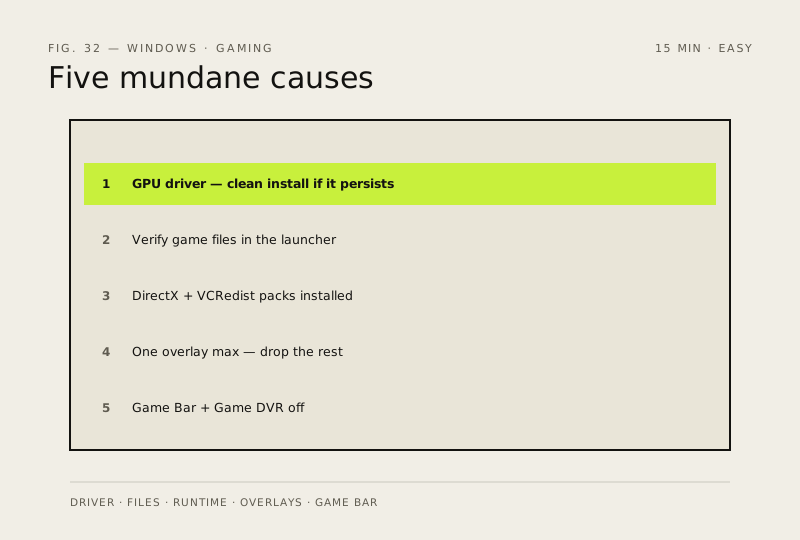
- GPU driver is current (make it a clean install with DDU if stutter persists)
- Game files intact / verified (Steam, EA, Epic all have a 'verify' button)
- DirectX / VCRedist packs are installed
- No overlays fighting each other (Steam + Discord + GeForce Experience = pick one)
- Disable Game Bar and Game DVR: Settings → Gaming → off both
How to verify the fix
Play a session that previously stuttered and confirm lag spikes are gone with stable frame times.
If this didn't fix it
Stutter persists after all five points — the cause is likely hardware (thermals, RAM) or a background process you haven't found yet.
Next stop: the related fixes below, or start a guided diagnosis.