 EmTech Media
Win 10 / 11 · Gaming
Reduce input lag in competitive games
Millisecond matters in FPS games. Cut anything between your hand and the screen.
Before you start
Low risk. This change is reversible — you can return to the previous state without professional help or data loss.
Steps
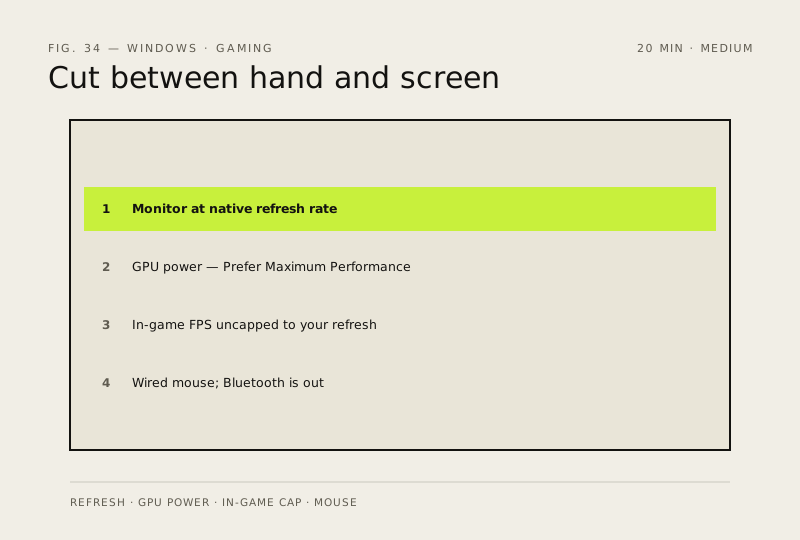
- Change monitor refresh rate: Windows → Screen → Advanced display → set to the monitor's native rate (often hidden at 60 Hz by default)
- Set GPU power management to 'Prefer Maximum Performance'
- In-game: uncap FPS to your refresh rate or go slightly higher
- Use a wired mouse if you can; 2.4 GHz wireless is fine, Bluetooth is not for competitive play
How to verify the fix
The monitor runs at its native refresh rate (Advanced display) and input feels tighter in competitive play.
If this didn't fix it
Refresh rate still shows 60 Hz or lag persists — the monitor, cable or GPU output may not support a higher rate.
Next stop: the related fixes below, or start a guided diagnosis.