 EmTech Media
Win 10 / 11 · Maintenance
Repair corrupted system files
A slow, glitchy PC that won't update? Corrupted system files are usually the cause. Two commands fix most of it.
Before you start
Medium risk. This change is reversible — you can return to the previous state without professional help or data loss.
What usually goes wrong
- DISM stops with error 0x800f081f. It needs a healthy copy of Windows to repair from and can't reach one — run Windows Update first, or mount a Windows ISO matching your version and point DISM at it with /Source.
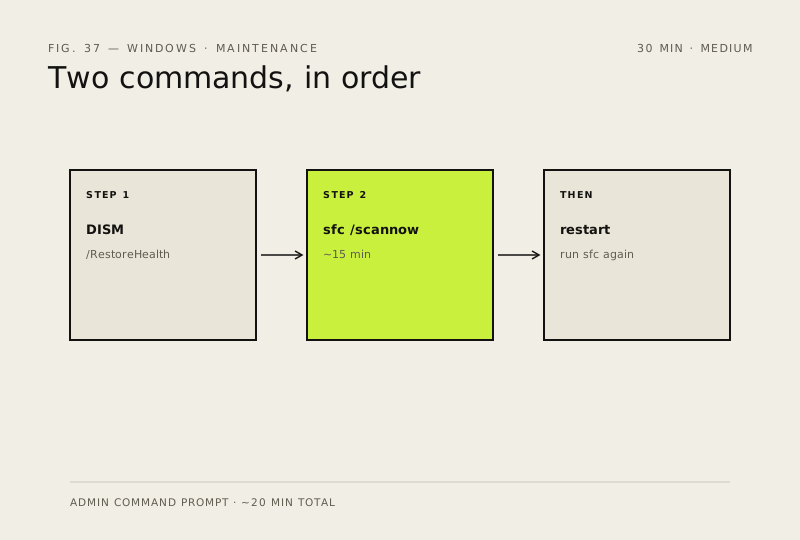
- Run DISM before sfc, in that order. sfc repairs from the local component store, so if that store is itself damaged, sfc will keep reporting files it can't fix no matter how many times you run it.
- sfc says it found corrupt files but couldn't fix them all. The detail is in C:\Windows\Logs\CBS\CBS.log — search that file for 'cannot repair' rather than reading it top to bottom.
- Corruption that keeps coming back usually isn't software. Run a disk health check before repeating either command — a failing drive manufactures new corruption faster than sfc can repair it.
Steps
- Open Command Prompt as Administrator
- Run: DISM /Online /Cleanup-Image /RestoreHealth (waits a few minutes)
- Then run: sfc /scannow (about 15 minutes)
- Restart. Re-run sfc if it reports files it couldn't fix
How to verify the fix
sfc /scannow reports repaired files (or nothing to fix) and the slowness or glitches improve after restart.
If this didn't fix it
sfc repeatedly reports files it couldn't fix, or problems continue — try a Windows in-place repair before considering a reinstall.
Next stop: the related fixes below, or start a guided diagnosis.