 EmTech Media
Win 10 / 11 · Maintenance
Start Windows in Safe Mode
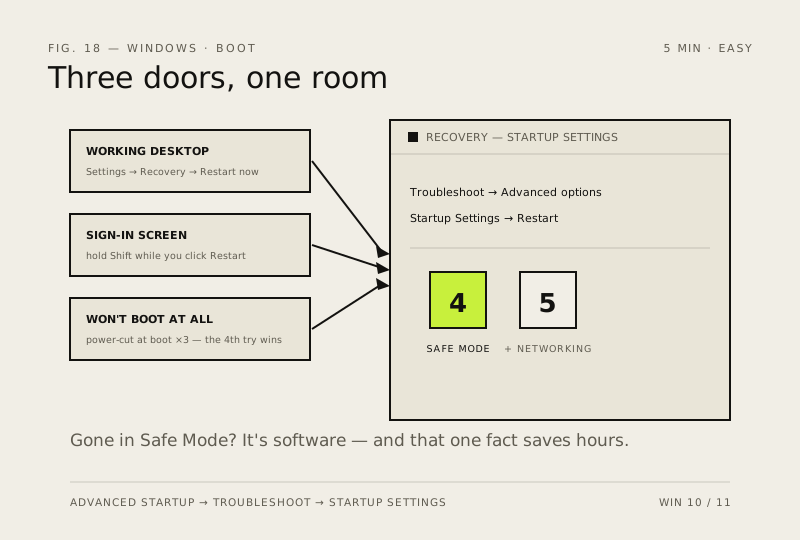
Safe Mode loads Windows with only the drivers it cannot do without. If a problem disappears there, it's software — and knowing that one fact saves hours of guessing.
Before you start
Low risk. This change is reversible — you can return to the previous state without professional help or data loss.
Steps
- From a working desktop: Settings → System → Recovery → Advanced startup → Restart now
- From the sign-in screen: hold Shift while you click Restart
- Then follow Troubleshoot → Advanced options → Startup Settings → Restart, and press 4 for Safe Mode or 5 if you need networking
- If Windows won't boot at all, cut the power during startup three times running — the fourth attempt opens Recovery on its own
- If it keeps booting into Safe Mode afterwards: Win + R → msconfig → Boot tab → untick Safe boot
How to verify the fix
Windows boots into Safe Mode (option 4/5), and you can confirm whether the problem disappears there.
If this didn't fix it
It keeps booting into Safe Mode afterwards — untick Safe boot in msconfig → Boot tab to return to normal startup.
Next stop: the related fixes below, or start a guided diagnosis.