 EmTech Media
Win 10 / 11 · Maintenance
Windows Update stuck? The safe retry pass
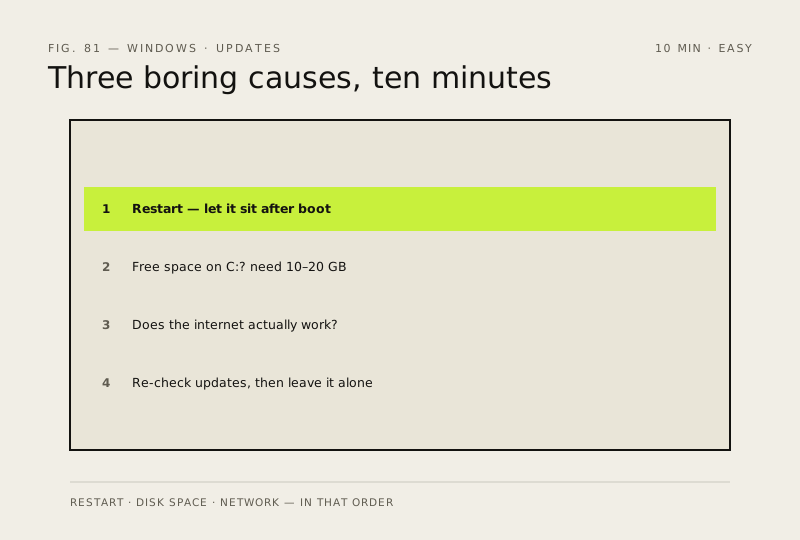
A stuck update is usually one of three boring things — a pending restart, a full drive or a dead network. This pass clears all three in ten minutes and can't damage Windows; system-file repair only comes after it fails.
Before you start
Low risk. This change is reversible — you can return to the previous state without professional help or data loss.
Steps
- Restart the PC and let it sit for a few minutes after booting — a large share of 'stuck' updates are actually waiting on a pending restart that never happened
- Check free space on C: (Settings → System → Storage). Windows Update needs roughly 10–20 GB of headroom; if you're short, clean up first using the storage tips before retrying
- Confirm the internet itself works — open any website in your browser. A dead or flaky connection looks exactly like a download that never moves
- Now go to Settings → Windows Update and press 'Check for updates' again, then leave it alone until it reports real progress or a specific error code
How to verify the fix
Open Settings → Windows Update and confirm the update that was failing now moves past its previous failure point — downloading, installing or completing instead of stopping at the same percentage or error.
If this didn't fix it
If the update still fails at the same stage after two attempts (same percentage or same error code), stop repeating this pass. Move to 'Repair corrupted system files' and note the exact error code for the next step — do not start deleting update folders or editing the registry yet.
Next stop: the related fixes below, or start a guided diagnosis.