 EmTech Media
Win 10 / 11 · Security
Stop Windows tracking your location
Your PC knows where you are — and most apps don't need to either. Cut it off at the source.
Before you start
Low risk. This change is reversible — you can return to the previous state without professional help or data loss.
Steps
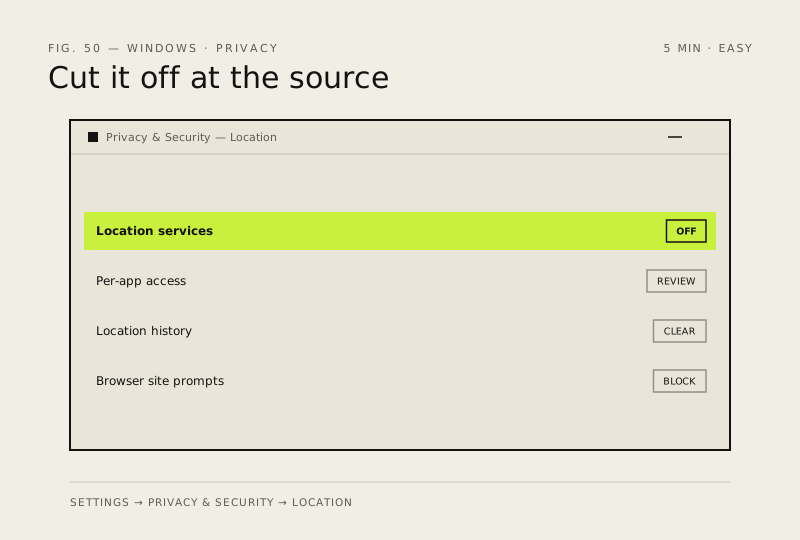
- Settings → Privacy & Security → Location → toggle 'Location services' off for a full cutoff, or leave it on and switch off individual apps below
- Under 'Let apps access your location', turn off games, social apps and anything you don't recognise — most never needed it in the first place
- Scroll to Location history → Clear — turning tracking off doesn't delete what's already been recorded
- In each browser: site permissions → Location → block sites from asking (Chrome: Privacy and security → Site Settings → Location)
- Need it off fast for a meeting or trip? Win + A → Airplane mode kills Wi-Fi, Bluetooth and location in one tap
How to verify the fix
Location services show off (or per-app off) in Settings, and apps no longer prompt for your location.
If this didn't fix it
An app still asks for location after you toggled it off — check the per-app list under Let apps access your location.
Next stop: the related fixes below, or start a guided diagnosis.