 EmTech Media
Win 10 / 11 · Windows
Stop Windows updates at odd hours
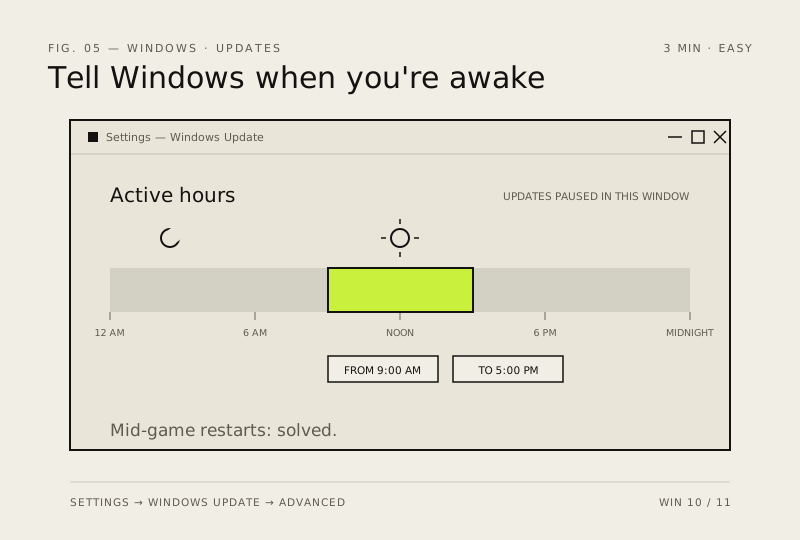
Updates restarting your PC while you're mid-game is a real thing. Set Active Hours so Windows knows when you're working.
Before you start
Low risk. This change is reversible — you can return to the previous state without professional help or data loss.
Steps
- Settings → Windows Update → Advance options → Active hours
- Set a window that covers when you actually use the PC
- For more control: pause updates for up to 5 weeks any time
How to verify the fix
The PC no longer restarts for updates during your set active hours window.
If this didn't fix it
Unexpected restarts continue — widen the active hours range or check that another scheduled task is restarting it.
Next stop: the related fixes below, or start a guided diagnosis.