 EmTech Media
Win 10 / 11 · Security
Turn on full-disk encryption (BitLocker)
If your laptop is stolen or lost, an unencrypted drive is just a USB stick with someone else's life on it. BitLocker makes the data unreadable without your sign-in.
Before you start
Medium risk. This change is reversible — you can return to the previous state without professional help or data loss.
What usually goes wrong
- Windows Home gets 'Device encryption' only, not full BitLocker management. If that toggle isn't in Settings at all, it's either your edition or missing hardware — not something you've done wrong.
- On a local account there is nothing for Windows to escrow the key to. Save the recovery key yourself, somewhere off this machine, BEFORE you turn encryption on.
- A BIOS or firmware update, a boot-order change, or moving the drive to another machine can make the TPM stop trusting the boot — and Windows demands the recovery key on the next start. This is far and away the most common way people lock themselves out.
- Suspend protection before any planned firmware update: Manage BitLocker → Suspend protection. It resumes on its own after the next restart, and it saves you the key prompt entirely.
Steps
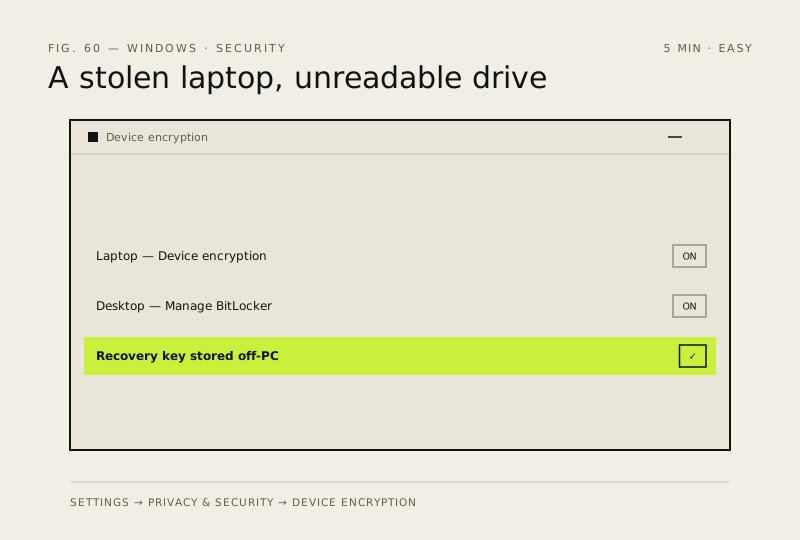
- Settings → Privacy & Security → Device encryption — if it says 'On', you're already covered (common on laptops)
- If it's off, flip it on; Windows encrypts in the background while you keep working
- Desktop or older machine? Search 'Manage BitLocker' and turn it on for your main drive instead
- Write down the recovery key and store it somewhere that isn't this PC (your Microsoft account does this automatically)
How to verify the fix
Device encryption shows On, and you have the recovery key stored somewhere other than this PC.
If this didn't fix it
Encryption stalls or a drive becomes unreadable without the key — losing the recovery key can lock you out permanently; keep it safe.
Next stop: the related fixes below, or start a guided diagnosis.