 EmTech Media
macOS · Mac · Everyday fixes
Run First Aid on external drives
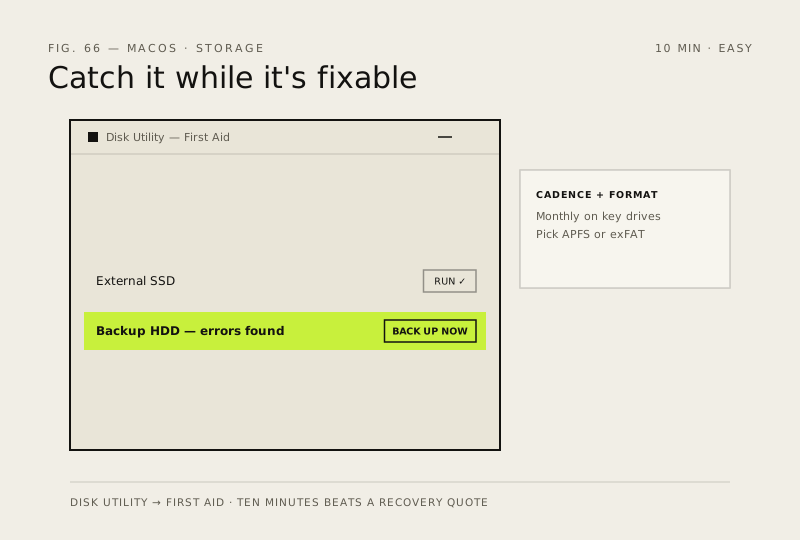
External drives fail quietly — files vanish, copies stall. Disk Utility's First Aid catches most problems while they're still fixable.
Before you start
Low risk. This change is reversible — you can return to the previous state without professional help or data loss.
Steps
- Open Disk Utility (Cmd + Space → 'Disk Utility'), select the drive in the sidebar and hit First Aid → Start
- If it reports errors it can't repair, back up what you can immediately — that drive is on borrowed time
- Mac-only drives should be APFS or Mac OS Extended; Windows-shared drives should be exFAT (check under 'Info' after selecting)
- Run First Aid monthly on any drive holding important data — ten minutes now beats a data-recovery quote later
How to verify the fix
First Aid completes with The volume appears to be OK (or repairs reported), and files copy without stalling.
If this didn't fix it
First Aid reports errors it can't repair — back up what you can immediately; that drive is on borrowed time.
Next stop: the related fixes below, or start a guided diagnosis.