 EmTech Media
macOS · Mac · Everyday fixes
Trackpad or mouse not working on your Mac? The safe restart pass
A dead trackpad or mouse is usually a stuck process, a bad port or cable, or the device itself — not a broken Mac. A clean restart plus simple isolation finds which one it is.
Before you start
Low risk. This change is reversible — you can return to the previous state without professional help or data loss.
Steps
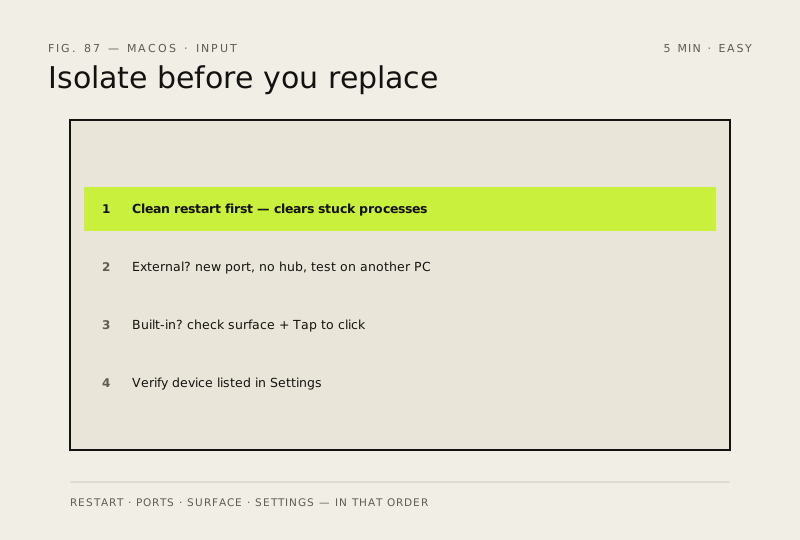
- Restart your Mac (Apple menu → Restart) — a clean boot clears most input glitches caused by a stuck process
- External mouse/trackpad? Try a different USB-C or USB port, bypass any hub or dock and connect directly, then test the device on another computer to isolate whether it's the device or the Mac
- Built-in trackpad? Check for physical damage, liquid spills or debris under the surface, and confirm 'Tap to click' isn't switched off (System Settings → Trackpad)
- After the reboot, open System Settings → Mouse & Trackpad and confirm your device is listed with its settings intact
How to verify the fix
After the reboot the cursor moves when you use the trackpad (or an external mouse in a different port), and clicks register normally in any app.
If this didn't fix it
Still dead after a clean restart — for the built-in trackpad, try the NVRAM reset next; for an external mouse or trackpad that also fails on another Mac or port, the device itself is likely faulty rather than your Mac.
Next stop: the related fixes below, or start a guided diagnosis.