 EmTech Media
Win 10 / 11 · Windows
Fix a printer that won't print
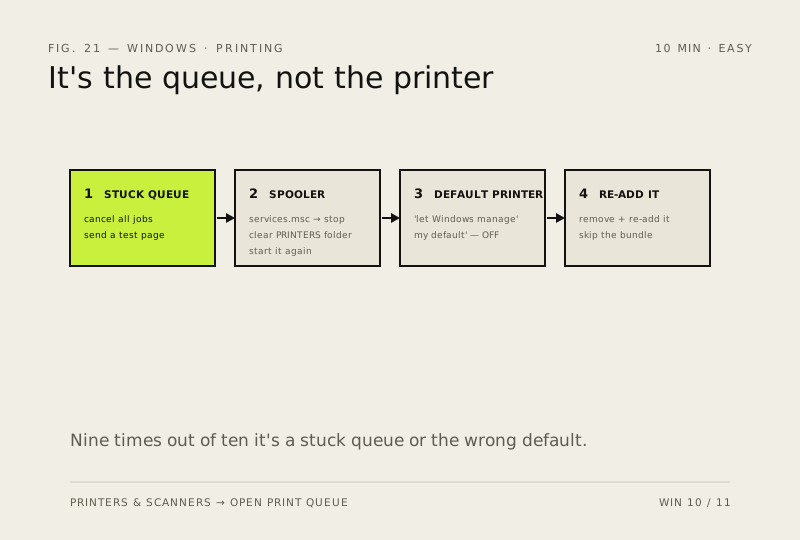
Nine times out of ten it's a stuck queue or the wrong default printer — not the printer. Work through these before you buy ink, a cable, or a new machine.
Before you start
Medium risk. This change is reversible — you can return to the previous state without professional help or data loss.
Steps
- Settings → Bluetooth & devices → Printers & scanners → your printer → Open print queue. Cancel every stuck job, then send one test page
- Clear the spooler properly: Win + R → services.msc → stop Print Spooler, delete everything inside C:\Windows\System32\spool\PRINTERS, then start the service again
- Turn off 'Let Windows manage my default printer' — it quietly reassigns the default to whatever you used last, which is rarely what you want
- Still nothing? Remove the printer and re-add it. Windows 11 drives most modern printers driverless over IPP, so skip the manufacturer's software bundle unless you need the scanner
How to verify the fix
A test page prints from the queue, and the default printer stays set to the one you want.
If this didn't fix it
The queue is clear but nothing prints after re-adding — try a different USB port/cable before blaming the driver.
Next stop: the related fixes below, or start a guided diagnosis.