 EmTech Media
Any · Security
Lock down your home Wi-Fi properly
Your router's default name is a map for attackers — it tells them the make, model and which firmware bugs to try. Fifteen minutes fixes all of that.
Before you start
Medium risk. This change is reversible — you can return to the previous state without professional help or data loss.
What usually goes wrong
- Write the new router admin password down before you save it. Getting it wrong locks you out of your own router, and the only way back is a factory reset that undoes everything else you just did.
- Renaming the network or changing the passphrase disconnects everything at once — phones, laptops, the TV, the printer, the thermostat, the doorbell, every smart plug. Budget an hour to reconnect them, and don't do it while someone's working.
- Older devices don't understand WPA3. If something refuses to rejoin, set the router to mixed WPA2/WPA3 rather than dropping the whole network back to WPA2.
- Plenty of smart-home gear can only see 2.4 GHz. If a device vanishes after the rename, check whether the 2.4 GHz band needs its own network name for that device to find it.
Steps
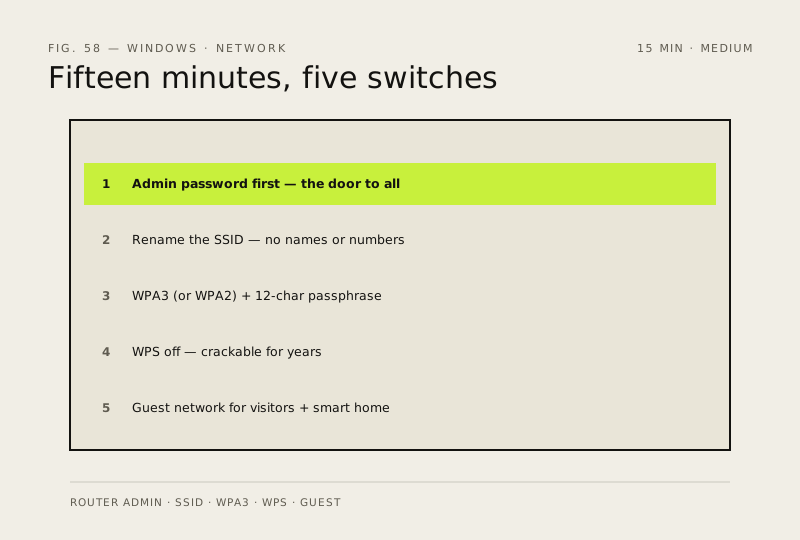
- Log into your router (usually 192.168.0.1 or 192.168.1.1) and change the admin password first — it's the door everything else goes through
- Rename the network (SSID) to something that doesn't reveal you: no house numbers, names or 'SmithFamily'
- Set a strong Wi-Fi passphrase (12+ random characters work well) and use WPA3 if your router supports it, otherwise WPA2 — never WEP or open
- Turn off WPS if you can see the setting — it's been crackable for years
- Create a guest network for visitors and smart-home gear so they're walled off from your PC
How to verify the fix
The router admin login uses your new password, devices reconnect on the renamed SSID with WPA2/WPA3, and a guest network is active.
If this didn't fix it
You lose access to the router or devices can't reconnect — use the physical reset only as a last resort; it restores factory defaults.
Next stop: the related fixes below, or start a guided diagnosis.